


⌨️ Obsidian Keyboard Shortcuts
The Command Palette
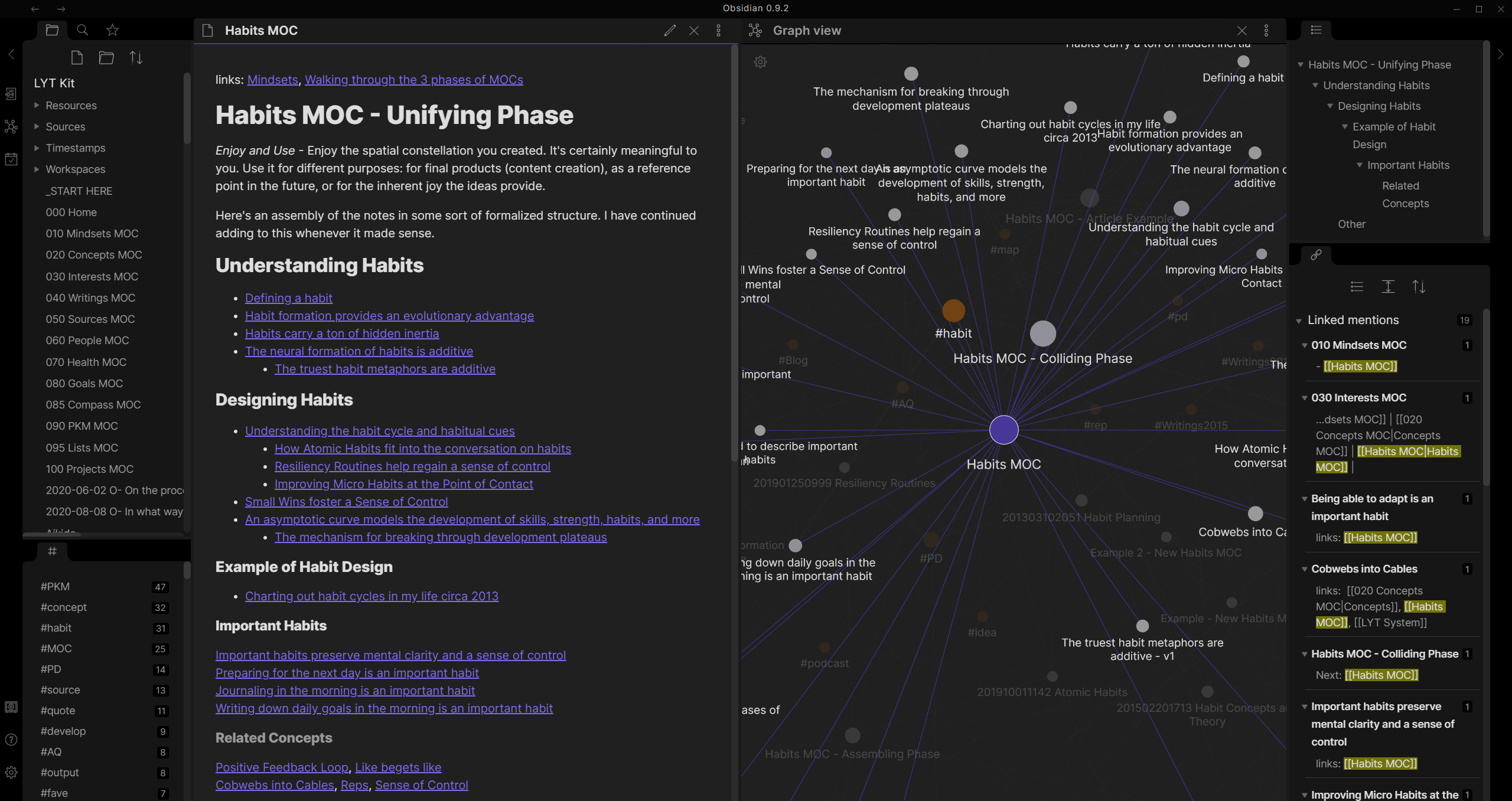
Just like modern code editors, Obsidian has a powerful Command Palette. Press Ctrl + P to search and run any setting, core feature, or community plugin command instantly without leaving your keyboard.
⚙️ General & System
| Shortcut | Action |
|---|---|
Ctrl + P |
Open Command Palette |
Ctrl + , |
Open Settings |
Ctrl + Shift + F |
Search in all files (Global Vault Search) |
Ctrl + G |
Open Graph View |
Ctrl + W |
Close active tab / window |
📁 File & Vault Management
| Shortcut | Action |
|---|---|
Ctrl + N |
Create new note |
Ctrl + O |
Quick Open (Search and open a note by name) |
Ctrl + S |
Save current file (Obsidian autosaves, but manually forces sync) |
Ctrl + Alt + Left |
Go back in navigation history |
Ctrl + Alt + Right |
Go forward in navigation history |
Ctrl + Shift + T |
Reopen last closed tab |
📝 Editing & Markdown Formatting
| Shortcut | Action |
|---|---|
Ctrl + B |
Toggle Bold text |
Ctrl + I |
Toggle Italic text |
Ctrl + K |
Insert Markdown link [text](url) |
Ctrl + / |
Toggle comment block |
Ctrl + Enter |
Toggle checkbox / task status (- [ ]) |
Alt + Up |
Move current line up |
Alt + Down |
Move current line down |
Internal Linking
While typing, you can type [[ to instantly trigger the internal note auto-complete. This allows you to link your thoughts and build your personal knowledge graph fluidly.
👁️ View, Layout & Tab Management
| Shortcut | Action |
|---|---|
Ctrl + E |
Toggle between Editing and Reading views |
Ctrl + Alt + N |
Split active tab vertically |
Ctrl + Shift + \ |
Split active tab horizontally |
Ctrl + Tab |
Go to next tab |
Ctrl + Shift + Tab |
Go to previous tab |
Ctrl + 1 / 2 / 3 |
Focus specific tab group |
🔍 Editor Search & Navigation
| Shortcut | Action |
|---|---|
Ctrl + F |
Find in current note |
Ctrl + H |
Replace in current note |
F3 |
Find next match |
Shift + F3 |
Find previous match |
macOS Key Mapping
For Apple hardware users, Obsidian automatically adapts to standard macOS conventions: substitute Ctrl with Cmd (⌘) and Alt with Option (⌥) for almost all of these shortcuts.